Category Archives: microsoft

Apple Snow Leopard and Exchange: the real story

Apple’s Snow Leopard (OS 10.6) came out last week, and one of its most hyped features is native support for Microsoft Exchange. Here’s what Apple says:

With Snow Leopard, the Mac is the only computer with built-in support for the latest version of Microsoft Exchange Server. So you can use your Mac — with all the features and applications you love — at home and at work and have all your messages, meetings, and contacts in one place.

What this means is that eager Mac users will be upgrading to Snow Leopard and expecting to be able to connect to Exchange at work with Apple-style “it just works” ease of configuration.

The truth is more complex; and I’m disappointed with both Apple’s publicity and the number of reviews that have simply reported its claims without investigation. That said, it is a tricky subject, and I have some sympathy with Apple, which is doing more or less the right thing at a technical level.
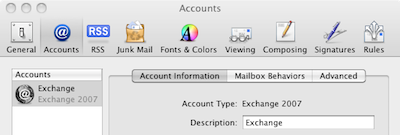
Configuring Snow Leopard Mail to use Exchange

The first thing to understand is that there are myriad ways of connecting to Exchange, including:

  • MAPI, which is Microsoft’s proprietary API
  • IMAP, which is a standard protocol for server-based email
  • ActiveSync, which is a Microsoft protocol used for mobile devices
  • RPC over HTTPS, effectively MAPI over SSL, enabling Outlook to connect from outside the network without VPN
  • Outlook Web Access, a web UI for Outlook
  • WebDAV, now deprecated
  • Exchange Web Services, which communicate using SOAP XML messages

Which of these protocols are actually enabled, and whether they are published beyond the internal network, is a matter for Exchange admins to configure.

The usual generic method to connect to Exchange from a miscellaneous client is IMAP, and this is exactly what Apple supported in Mail before Snow Leopard, and still supports. IMAP works pretty well in my experience, but it is only for email and does not expose any Exchange-specific features.

Snow Leopard adds support for Exchange Web Services (EWS), giving a much richer level of access to Exchange. First snag: EWS is only supported in Exchange 2007, which is why Apple says in its small print:

requires Microsoft Exchange Server 2007 Service Pack 1 Update Rollup 4

Second snag: even EWS does not all the features of MAPI, and some features (notably public folder support) were only added in Exchange 2007 SP2, which has just been released. This probably explains why Mail does not (as far as I can tell) support public folders.

The key thing to understand is that Snow Leopard is not using the same protocol as Outlook and therefore does not have access to the same set of features.

What works and what doesn’t

Let’s assume that you have Snow Leopard and Exchange 2007 SP1. What works and what doesn’t? Based on my experience so far:

  • You will be able to connect on an internal network or VPN, provided that EWS is enabled, which it usually is. You may need to install a digital certificate to avoid warning messages.
  • Mail, Calendar (iCal), tasks and notes in your Exchange mailbox all appear nicely.
  • When outside the network, you will only be able to connect over the Internet if EWS is published externally, which it often is not. You cannot use RPC over HTTPS.
  • There is no access to public folders (note that these are deprecated, but still widely used).
  • It is not possible to send from an email address other than the default.
  • You cannot use Exchange delegation features, such as accessing other mailboxes.
  • Mail will download the entire mailbox; you cannot set it only to download recent items. There is no “online mode” as there is with Outlook.
  • When offline, you can access existing items, but new messages have to be saved as drafts. This is unlike Outlook, which gives you full access to send mail, delete etc, and synchronises on re-connect.

Snow Leopard vs Entourage

You might imagine that Microsoft’s own Entourage product would do a better job than Apple Mail at connecting to Exchange. This is not necessarily the case. The problem is that Entourage 2008 doesn’t use MAPI either. In its first incarnation it uses WebDAV. This proved so problematic that Microsoft quietly released a new Web Services Edition that uses EWS, like Snow Leopard. Even this is a temporary expedient, as the Mac Business Unit has announced Outlook for the Mac. The implication is that it will be closer to feature-parity with Outlook on Windows, though it’s not clear to me whether this means MAPI, or EWS, or who knows what?

My view is that unless you need some specific feature of Entourage, or find that Entourage mysteriously works where Snow Leopard does not, you are likely better off without it. This presumes Exchange 2007, of course. The fundamental reason is that Mail and iCal are nicely integrated with the operating system, whereas Entourage is not so good in this respect; there have also been quality issues with Entourage.

It would be good to see a detailed technical note from Apple and/or Microsoft on Snow Leopard’s Exchange support, how to configure Exchange for it, and any implications for security etc. In the meantime, there is an interesting discussion on Apple’s forums which highlights the issues.

For all its (many) faults, Outlook on Windows remains a better Exchange client than either Snow Leopard or Entourage.
Apple Snow Leopard: why don’t we all use Macs?

Last Friday I attended Apple’s press briefing for Snow Leopard, and I’ll be a Mac (mostly) for the next few days as I put OS 10.6 through its paces. For as long as I can remember, I’ve set up my desktop so that I can easily switch between Mac and Windows, so it is no great hardship.

Snow Leopard is a relatively low-key release, timed by accident or design to appear not long before Windows 7 makes its full public debut in October – though many IT professionals are already using the final build. In the unlikely event that you’ve missed the many reports, the headline new features are:

  • Many small refinements and speed improvements
  • Major applications re-written in 64-bit
  • Grand Central Dispatch – OS-level support for easier concurrent programming
  • OpenCL – standard means of using the GPU (graphics processing unit) for general processing, not just graphics
  • Exchange support in Mail, iCal and Address Book

The Exchange support is welcome, though unfortunately it is limited to Exchange 2007. It was already possible to access Exchange in Mail, though the older support (which still exists for pre-2007 Exchange) was based on IMAP, whereas the new support is based on Exchange web services and has richer features.

I use Exchange 2007, and found it easy to set up my account in Mail. Unfortunately I’m missing some Outlook features, such as the ability to choose a different Sender  address, and I’ve found it prone to a few mysterious pauses –  once it went into a sulk for over a minute when I marked a message as junk – but this might be a problem with Exchange web services rather than Mail, who knows? I also have some public folders which appear to be inaccessible from Mail or iCal. Then again – Entourage isn’t as flexible as Outlook either.

Still, I  expect the Exchange support will be good enough for many users, and this will make it easier to integrate Macs into Windows-based networks.

So, here’s a thought experiment. Let’s make an assumption:

  • Most people prefer the Mac operating system over Windows, and prefer the Mac hardware over most PC or laptop hardware.

If that is the case, why do we not all use Macs?  There’s a host of reasons which come to mind, starting with price. I looked at macwarehouse.co.uk and pcworld.co.uk, which are owned by the same group. The cheapest Mac I can find (Mac Mini + keyboard, mouse and display) is currently £536.96, vs £260.86 for a PC; and the cheapest laptop is £645.99 + VAT for a MacBook vs £216.52 for a cheapie PC laptop with Vista Basic. These differences are not small.

Note I am not saying that the Mac is poorer value; that is an entirely different argument.

A second big issue is application compatibility. Although there is no problem that cannot be solved with finding alternatives, or dual boot, or a virtual machine, it is all friction that impedes Mac acceptance.

Third, there is the greater manageability of Windows in a corporate environment based on Windows. This is a form of incumbent advantage, which is hard to break unless the incumbent messes up badly. Arguably Microsoft has messed up badly, though less in the business context than in the consumer context, and Windows 7 will pull back some lost ground.

The above leads me to believe that Snow Leopard is not likely to change the status quo significantly – understanding that the status quo is that Apple is gradually increasing its market share – even granting the assumption I made, which is somewhat controversial. On balance, I consider it more likely that Windows 7 will stem the flow towards Apple, though without a high degree of confidence.

More significant than either factor is the continuing migration towards the Internet. In this respect I’ve argued that Apple is like Microsoft. The Internet is a great leveller; it will reduce the friction of changing operating systems (helping Apple) but also make Apple’s UI advantage less noticeable (helping Windows/Linux/Google), and make it harder to sell expensive desktop software (Microsoft is the bigger loser here I think).

It’s fun to speculate; but I must add that so far Snow Leopard has been a pleasure to install and use. Technically, Apple hasn’t missed a beat with OS X since the first release, and that’s an impressive achievement.

Hope for old PCs with Windows 7

Yesterday I installed Windows 7 Professional on an older PC – it dates from 2001 or possibly 2002, and has a Pentium 4 1.8Ghz on Intel’s 845 chipset. Only 768MB RAM is installed – generous for XP in those days, but below the 1GB minimum spec for Windows 7.

I thought I would try it anyway. It turned out that Windows 7 installed without complaint – I believe you have to go down to 512MB before setup actually protests – and I was impressed with how smooth the process was. There is a Creative Audigy soundcard installed; and after logging on for the first time, Windows automatically downloaded an update which got this working. Device Manager shows no errors other than a “PCI Input Device” which I suspect is the joystick port on the Creative soundcard. A cheap USB wireless card was recognized first time, and the add-on USB 2.0 card also works fine.

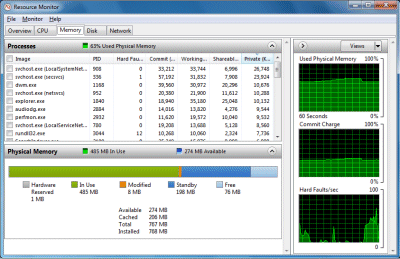
I am also impressed by the performance. I stuck on Office 2007, ran up Word and Excel with a couple of documents open, and looked in Resource Monitor:

This shows 274MB still available; at this level of use, the machine is not under any pressure.

It is not fair to make a direct comparison with XP since it had been installed for a while and would have built up a bit of cruft. However, Windows 7 is subjectively slightly faster, if anything, and you could not say that for Vista on the same machine.

I am not recommending that anyone runs Windows 7 on a below-spec machine, but I found it interesting nonetheless.

I’ve also been pleased with the in-place upgrade I did on my laptop, a 2006 Toshiba M400. This machine is much younger of course; though at three years old laptop batteries tend to die and sometimes it is hard to justify the cost of a replacement. This one is running so well that I have replaced the battery.

I am sure the industry is counting on Windows 7 to drive sales of new machines. There is another angle on this though, which is that old machines that were not much fun with Vista may be rejuvenated by a Windows 7 installation. Extending their life is good for the balance sheet as well as for the environment, so I am all in favour.

Yet another angle on this is that there is more incentive to go through the pain of reinstalling the operating system for Windows 7 than there was for Vista. I suspect this means that we will see rapid adoption, exceeding most expectations. For developers, that means it will pay to support Windows 7 features like the new taskbar sooner rather than later.

Technorati Tags: ,,,

Getting picky about the Windows 7 Taskbar – real-world flaws?

The new taskbar in Windows 7 is for launching applications as well as showing what is running; and one of the first things you do with a new installation is to pin your favourites there so they are easy to start.

Very soon, you’ll run out of space. This is a problem that will get worse, too, because app vendors will discover that the notification area is no longer effective for getting the user’s attention and background applications will use the taskbar instead.

Unfortunately a scrolling taskbar is not much fun to use. In fact, it’s a disaster. The taskbar divides itself into pages, and a fiddly scroller lets you flip from one page to the next.

Further, if you activate a running application which is on a different page, then its page comes into view, hiding the other icons.

Now let’s say you want to launch an application which is on a page that is no longer in view. Instead of clicking one large target (especially nice if you are using touch), you have one tiny target (especially horrible if you are using touch) – the up or down arrow on the scroller – followed by a second click on the app icon. Maybe there is a keyboard shortcut for scrolling the taskbar, but the only one I know is Win-T which cycles through all the icons – tedious.

At this point, you have two further options. You can increase the height of the taskbar. Right click – Properties – untick Lock the taskbar – then drag the top border up. Now you have more space for icons, but you have also lost valuable working space on the screen.

The second option is to use small icons, which is another option in properties. When you do this, you can fit in a few more icons, though not as many extra as you might expect. It is easy to see why this is so unsatisfactory. Here is the Word icon in normal size, followed by the small icon version:


Two observations. First, the “small” version is not that much narrower than the large one. Second, if you look at the size of the icon versus the amount of background, the small version is mostly wasted space. The actual image on the small icon is roughly 25% the size of the large. You get a poor yield in terms of extra icons, but a severe usability loss in that the small size is hard to see.

I don’t know if this problem can be improved by tweaking other Windows settings, but would be interested to discover.

It is also a shame that the taskbar cannot be extended across a second display, if you are running two or more screens.

The conclusion, in my case, is that neither the double-height nor the small icon view is really satisfactory, though double-height is less bad.

I like the new taskbar, but this is a real annoyance. Any tips I’ve missed?

Technorati Tags: ,,

Hands on Windows 7 multi-touch – will Apple get this right before Microsoft?

I’ve been trying a Dell Latitude XT2 with Windows 7 as a way of exploring multi-touch with Microsoft’s new operating system. I have a number of thoughts on the subject, which I will do my best to organize, but this is work in progress and I welcome your comments.

Multi-touch has received scant attention in all the Windows 7 coverage for one very good reason: few of us have the right hardware. Even a Tablet PC won’t do; you need one with that supports multi-touch which is one of a very few PCs on the market.

Touch is nevertheless a key issue, because it is the future of how we interact with our computers, particularly portable computers. 

Touch computers should have no keyboard or stylus

This one takes a bit of argument. I’ve used a Tablet PC for years, almost since their first release, and I like lots of things about them. However a lot of the time I use them in old-style keyboard mode. Why? Because the stylus is a nuisance and text input too fiddly. When Microsoft designed the Tablet PC, it should have made “doesn’t need a stylus” as the number one constraint, and “doesn’t need a keyboard” as another. It did not; and that is why Tablet PC has more-or-less failed.

There are several problems with the stylus concept. They are fiddly, expensive, and get lost easily. They make interacting with the device less natural. They introduce new problems while solving others.

As for the keyboard, it is a disaster. Once you concede the necessity of a keyboard, you end up with a clam-shell, twist-screen design that is complex, fragile and expensive. It is neither one thing nor another, and can never be mainstream.

The chunky finger problem

The stylus is a compromise that solves a particular problem: the finger is a chunky pointer. Typical menus and icons are designed with mouse-precision in mind, and stabbing them with a finger results in frustrating errors. Still, this problem bears a little analysis. Does a finger have less precision than a mouse pointer? Not really; human fingers are highly evolved and easily capable of the necessary precision. The Windows Touch Pointer (available in Vista as well as Windows 7) illustrates this. It is an on-screen mouse which represents a large target for the finger, but controls a pointer of high precision:

Using the touch pointer, the finger is just as precise as a real mouse, though it takes some mental adjustment, gets in the way, and is off by default in Windows 7.

The text input problem

The other advantage of the stylus is that it simulates a pen, making it easier to write or draw. This is actually an excellent reason to have a stylus as an option; but it should not be necessary for normal operations.

Text input without a keyboard is a partially unsolved problem, and the stylus is not a complete answer. Handwriting recognition is now pretty good on a Tablet; but I can still type faster than I write, and the pop-up input panel is an interference, especially when you only need to type a few letters. Apple’s iPhone (no stylus) has a good stab at making touch input work for text, and though I still don’t like it greatly, I think it is along the right lines.

Windows 7 and touch

What about Windows 7? Well, Microsoft has gone half-way towards making Windows touch-friendly. Multi-touch is a major advance, and gestures are a powerful concept enabling touch-driven applications that are much easier to use. A gesture interprets a pattern drawn on the screen as a single command; there is a list of Windows 7 gestures here, and developers can create their own.

Microsoft’s aim with Windows 7 was not to build a special touch interface, but to make the standard UI easy to control:

A touch shell for launching only touch-specific applications would not meet customers’ needs – there would be too much switching between “touch” mode and Windows applications. Instead, we focused our efforts on augmenting the overall experience so that Windows works great with touch.

This sounds good, but has Microsoft succeeded? My test was simple: start up in Tablet mode and see how easily I could work, without using the stylus.

I found using Windows 7 touch-only possible, but not always enjoyable. You can pump up the text size to make targets larger, but applications like Microsoft Office are still hard to use. The new taskbar is designed to be touch-friendly, and generally speaking it is, though not so much in the notification area. The Start menu is less good; and despite Microsoft’s concerns a touch-specific replacement may well be a good idea. Some applications, like Windows Media Player, seem fine with touch control; others, like Control Panel, awkward. Internet Explorer is relatively nice to use, and so is Apple’s Safari; I can well believe that it is designed with touch-control in mind.

One of the issues is that the on-screen keyboard does not always appear when you want it. It pops up automatically when you focus on standard text boxes; but for some reason it does not show up if I tap on a Sticky Note, for example; I have to drag it out manually.

The awkward truth: applications do need to be designed for touch in order to shine.

I do not know exactly what Microsoft and/or its OEM partners are planning for Windows 7 touch, but suspect we are going to see a few more high-priced niche items like the Dell Latitude XT2 – lovely hardware though it is – that essentially continue the Tablet PC theme and will not greatly impact the market.

The kind of device that might work, to my mind, would be:

1. Without keyboard or stylus

2. Priced keenly

3. Small – 12” screen at most

4. Bundled with excellent touch-friendly applications that are a pleasure to use – not just a collection of samples like the Windows 7 touch pack. Basic actions like web browsing, email, note-taking, and entertainment (games, media) should all be covered.

5. Preconfigured so that your first experience of Windows 7 multi-touch is not a frustrating one

Question: if that is right, is it likely that such machines will appear soon? Or is it more likely that Apple will deliver its rumoured tablet and severely impair Microsoft’s potential market?

Windows 7 tip: use Group by to merge and manage library views

I’ve been looking forward to the libraries feature in Windows 7. For example, on my desktop PC I keep some downloads in my personal download folder – under c:\users\[username]\Documents\Downloads – while others are in a download folder on drive E. It makes sense to treat this as one location, rather than two. Libraries let you view these two folders together, without physically merging them.

That said, Windows 7 tripped me up. I created a new library, called Downloads. I added the two folders. I was annoyed though to see that I had two separate lists of folders in the new library, not one. I wanted a single, merged list.

I clicked around to see if there was a way of merging the lists. I tried the Arrange by menu. If you arrange by Name, you get a single merged list but without folders at all – in my case, thousands of files. Arranging by folder got me back to the separate listings. I tried the Organize menu, but that didn’t help. I tried right-clicking, with promising options like Expand group and Expand all groups, but these were simply different ways of viewing the location groups.

Then I noticed that the default Documents library had exactly the view I wanted, merging the personal and public Documents folders. Had Microsoft included some magic for the built-in libraries, or was I missing something?

I was missing something. I found out what when I clicked Organize – Layout – Menu bar. Of course this is off by default, because someone at Microsoft has a religious aversion to menus; they have been removed entirely from most of Office. But once I had the menu bar, I found the View – Group by option. If I select View – Group by – None, then I get the merged folder list that I want.

In fact, all the Group by options seem to work on a merged list, which leads to strange fact number two: once I had the merged list, it was not obvious how to get back to the non-merged list. It is as if there is a Group by Location which is not on the menu. I did eventually work it out. To get back to the non-merged list, choose View – Arrange by – Clear changes. Obvious, eh?

Incidentally, there is a way of using Group by without displaying the menu bar. You have to right-click in the left margin of the right-hand pane of the library listing. Easy when you know how.

Technorati Tags: ,

In-place upgrade adventures with Windows 7

I have just done Windows 7 RTM in-place upgrades on two systems, one running Vista Ultimate x64, and the other running Vista Business x64. Why do an in-place upgrade? Simply because it is much less time and effort than a clean install. Actually, the “less time” bit needs qualification. The in-place upgrade takes several hours; I left one running overnight. However, most of the time is spent leaving the setup chugging away. It does not take much effort from you.

By contrast, a clean install involves finding all your application setup disks or downloads, serial numbers, and patches, then installing and configuring them. In some cases – Adobe Creative Suite comes to mind – you might need to de-authorize an existing installation first, or be faced with a call to support on reinstallation. Drivers are another issue; you will likely need to visit the vendor web site for your PC and any added devices and download the latest drivers. Overall, not a trivial task.

An in-place upgrade is not optimal. Doing a clean install gives Windows the best chance of running with full performance and stability, without inheriting legacy problems. Still, there is no harm in doing an in-place upgrade now, and a clean install later when you have the time. That way, you get Windows 7 goodness immediately.

Although there has been some fuss about the complexity of Windows 7 upgrades, it is not merited. In a nutshell, you can in-place upgrade from Vista to the equivalent Windows 7 edition or higher. You cannot go backwards, you cannot in-place upgrade XP, and you cannot move between 32-bit and 64-bit editions. Simple.

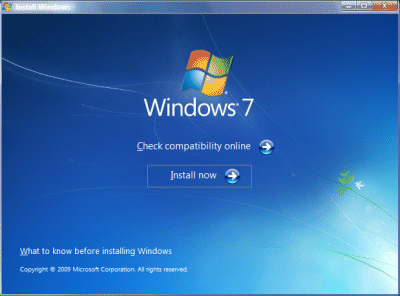
Here’s how it goes. For an in-place upgrade, you run setup from within the running version of Vista. If you click Check Compatibility Online, you are directed to the beta upgrade advisor. I wouldn’t bother if you’ve got this far; the setup does the same job and does not require a download. So click Install Now.


Of course, you’ve backed up stuff that matters to you, and appreciate that there is some small chance that Windows will be broken beyond repair and never boot again.

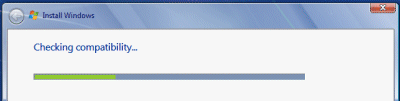
The first thing setup does is to check compatibility (see!).


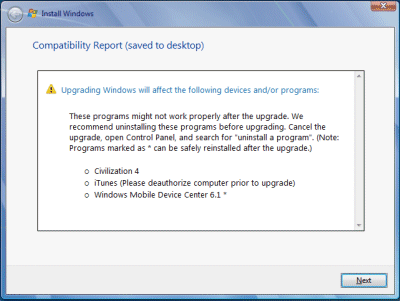
Then it will inform you of any issues. This is what I got:


Apparently Windows 7 does not like Civilization 4, iTunes or Windows Mobile Device Center 6.1. On my x64 box it also objected to SQL Server 2008, Daemon Tools, and an IDE storage controller. You are advised to cancel setup (which you do by closing the window; there is no Cancel button), remove the problem software, and try again.

You can fix the SQL Server 2008 issue by installing SP1. Daemon Tools is a low-level utility and could easily trip-up a Windows upgrade, and has only recently come out in a Windows 7 compatible version, so I removed it. iTunes was not being used so I removed that too. I also uninstalled Windows Mobile Device Center.

How about the storage controller on the x64 box? This one made me nervous, since if Windows cannot find a compatible storage controller, nothing will work. However, I knew that the storage controller which matters was the one for Intel Sata RAID, not IDE, so I ignored it.

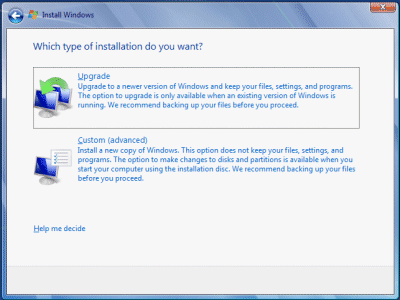
Once I had tidied up the system, I re-ran setup. This time, I hit Next. I got the Big Decision dialog box:


I wanted an in-place upgrade, so I chose Upgrade.

The next task is to wait a long time. Go and do something else. While it would be nice if this part went more quickly, it does not bother me that it takes hours; it is a one-off task. In my case, setup transferred nearly 600,000 “files, settings and programs”.

The aftermath

All going well (and it did) the next action is to hit Ctrl-Alt-Del (strange how that ugliness survives the years) and log onto your shiny new Windows 7 OS. There were just a few issues to resolve.

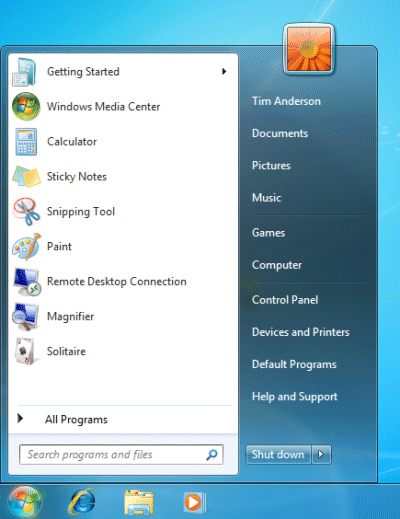
First, the upgrade tinkers with the Start menu, and one of the oddities is that Microsoft Office (version 2007 is installed) in effect disappears from view:


I am not saying it is hard to find. Desktop shortcuts remain, if you have them, and you can always type a search or burrow down into All Programs. Still, this could be jarring for some users. Among my first tasks with Windows 7 is to find the applications I use frequently and pin them to the taskbar (right-click, pin to taskbar).

Second, Internet Explorer 8 opened for the first time with odd dimensions. Easily fixed, though it is annoying that you have to go through Welcome to IE8 wizards that you have seen many times before.


Third, Lego Digital Designer (don’t ask) failed to run. Apparently the upgrade messed up OpenGL, even though setup correctly detected my NVIDIA graphics card. I downloaded the latest from NVIDIA, bumping up the version from 8.15.11.8593 to 8.15.11.9038. This fixed it. I suspect it was not the driver version as such, more that the NVIDIA install added additional components including OpenGL support.

Fourth, the Movie Maker problem. Your old Movie Maker 6 is removed, and if you try to run Movie Maker, you are invited to download Windows Live Essentials from the Web. The new Live Movie Maker is in beta, and after installation you get a message saying it has expired and offering an update (I imagine this will be fixed by the time of full rollout in October). Eventually it runs, but it is not as good as the old one. Solution: install the Vista one.

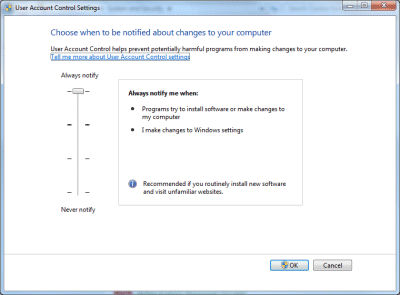
Fifth, the upgrade reduces your UAC protection level without asking. My first move is to put it back to the highest level, for reasons explained here.

Sixth, Windows Live Writer is slightly broken under Windows 7. When inserting a picture, the “From Web” option no longer appears; and even if you type in an URL in the file dialog (which used to work), it still tries to upload it. Some incompatibility in the common dialog API, or risky assumptions made by the Live Writer developers?

Overall, these are minor issues – so far, so good. Even Visual Studio 2008 appears to have survived the upgrade.

I need to run Windows 7 for review; but I’d recommend it anyway. It is an excellent upgrade from Vista, even more so from XP.

Apple is like Microsoft

That was my first thought after seeing the news that Google CEO Dr Eric Schmidt is leaving the Apple board. Steve Jobs:

Unfortunately, as Google enters more of Apple’s core businesses, with Android and now Chrome OS, Eric’s effectiveness as an Apple Board member will be significantly diminished, since he will have to recuse himself from even larger portions of our meetings due to potential conflicts of interest. Therefore, we have mutually decided that now is the right time for Eric to resign his position on Apple’s Board.

I realise that we are more used to the idea that Apple is Microsoft’s polar opposite. Apple has design and beautiful hardware, Microsoft has OEM’s with their model-a-minute systems that are never quite right. Apple has iPhone which everyone wants, Microsoft has Windows Mobile which everyone puts up with (if they don’t have an iPhone). Apple has iPod which everyone uses, Microsoft has Zune which nobody uses. And so on.

Nevertheless, Apple and Microsoft are companies from the same era, and they both make most of their money by constantly upgrading the client and persuading us to buy into the latest version. Although Apple has some investment in the cloud, with Mobile Me and more importantly the App Store, these exist primarily to support its client devices.

Google on the other hand is invested in the cloud. Projects like Android and Chrome OS may run on the client, but they are not profit centres in themselves – they exist to promote Google’s web-based services (see Google Chrome OS – the Web’s the thing). It is important for Google to make these investments, as without them the client-centric giants (Apple and Microsoft) have too much power to impair web-based computing in favour of the old model.

Recently Apple has been been making life miserable for App Store developers by denying applications that compete with built-in iPhone features – most visibly in the case of Google Voice. Unfortunately by protecting the iPhone in this way Apple is diminishing its usefulness in the cloud era.

Apple is not quite like Microsoft. Apple can grow by taking market share from Microsoft, whereas it is harder for Microsoft to do the reverse (though Windows 7 is a good attempt). Apple can make more inroads into business computing. It can broaden the market for the iPhone by making a wider range of device and lowering the price of entry, as it did with the iPod. The digital home is another promising market.

On the other hand, Microsoft has more of a cloud platform than Apple. Microsoft has Bing-Yahoo search, Hotmail and Messenger, Windows Azure and Silverlight. It has failed so far, but in theory it could build this into a viable alternative to Google.

Still, now that Apple and Google have started to break their alliance and openly compete, it’s clear that Apple and Microsoft are on the same side of a great divide, with Google on the other.

Technorati Tags: ,,

SQLite C# port raises hopes for a Silverlight local database manager

Yesterday programmer Noah Hart announced a port of SQLite to C#:

I am pleased to announce that the C# port is done to the point where others can look at it.

Unfortunately the code was taken offline almost immediately afterwards, thanks to the intervention of the author of SQLite, D Richard Hipp:

Noah, you are welcomed, even encouraged, to take the source code to SQLite and translate it in any way you want and do whatever you want with it. But you need to make it abundantly clear to everyone on your site and in the comments of your source code that your code is not the original SQLite … SQLite is a registered trade mark. If I don’t defend the trademark, then I could lose it. So, I really do need to insist that you not use the name "SQLite" for your product.

The reason given is that Dr Hipp does not want to receive support requests for the port, though the intervention is a little surprising since there are other 3rd party adaptions out there that do use the SQLite name, though these generally modify or wrap the original code rather than porting it completely.

Still, Hart has taken it in his stride and it looks as if the code may be back soon under the name sqlsharp – a Google code project with that name has been created. I hope this is the name since I suggested it, though it is rather an obvious one and I might not have been the first.

Why the interest? First, it’s always interesting to compare languages. Currently, Hart says his executable compiles to 528kb vs 506kb for the native version, and performs 3-5 times more slowly (results in rows per second):

Test SQLite3 C# SQLite3
Inserts 300K 1300K
Selects 1500K 8450K
Updates 60K 300K
Deletes 250K 700K

Although that may seem disappointing, SQLite is remarkably fast so even 5 times slower is still acceptable in many contexts; and there are no doubt many possibilities for optimisation.

What’s the point? Hart says it was a C# learning exercise, which is fair enough. Others are hopeful for a local database manager for Microsoft Silverlight, writing to isolated storage. Competitor Adobe AIR includes SQLite in the runtime, as does Google Gears.

Silverlight may a stretch for Hart’s port. Silverlight does not allow platform invoke or code marked as unsafe; and while there are apparently only a few p/invoke calls I’m guessing there may be many unsafe sections since the original SQLite makes heavy use of pointers.*

Although Silverlight is an implementation of the .NET Framework, it does not include the System.Data namespace. It does include System.Linq.

There are a few other efforts at creating a local database manager for Silverlight, including McObject’s Perst, db4o (work in progress), and Silverlight Database which works by persisting XML.

*Update: the project has now been published as csharp-sqlite, which is an excellent name; it looks as if Hipp relented to some extent. Now that I’ve seen the code I find I’m wrong about unsafe sections. In fact, I added C#-Sqlite to a Silverlight project and it failed to compile with a mere 53 errors, many of them related to file locking – possibly less necessary in isolated storage? A Silverlight port looks feasible.

No more Windows E – Europe will get full Windows 7 plus upgrade editions

Microsoft’s Dave Heiner has announced that plans for a separate Europe-only release of Windows 7, without Internet Explorer, have been abandoned at the last minute. This follows a new proposal to include a menu of browser choices instead:

In the wake of last week’s developments, as well as continuing feedback on Windows 7 E that we have received from computer manufacturers and other business partners, I’m pleased to report that we will ship the same version of Windows 7 in Europe in October that we will ship in the rest of the world.

Did Microsoft ever intend to ship Windows E, or was the whole thing some sort of bargaining proposition? Heiner even threatens to re-introduce it:

… if the ballot screen proposal is not accepted for some reason, then we will have to consider alternative paths, including the reintroduction of a Windows 7 E version in Europe.

Although Microsoft is making a significant concession by promoting other browsers, its proposal does mean that some users will still get IE by default. These are the users who either install Windows 7 themselves by purchasing Microsoft’s standalone package, or who receive a PC from an OEM that has chosen to leave IE as the default. In this case, here’s what happens:

Shortly after new Windows PCs are set up by the user, Microsoft will update them over the Internet with a consumer ballot software program. If IE is the default browser, the user will be presented with a list of other leading browsers and invited to select one or more for installation. Technically, this consumer ballot screen will be presented as a Web page that can be updated over time as new browsers become available.

There will be a proportion of users who have a “don’t bug me with this” reaction and just close the screen, in which case they will keep IE.

However, if the OEM supplies a PC with a browser other than IE as the default, the ballot screen will not appear, so Microsoft is at a disadvantage in that respect.

I am not sure how this will be handled in corporate environments. IE is arguably more attractive in a Microsoft-centric business environment, because it integrates with network management tools and should work properly with other Microsoft products such as SharePoint or Outlook Web Access. If IE is the corporate standard, I doubt admins will want users to see a ballot screen offering other browsers, and I imagine there will be some way of blocking it.

One final observation. Personally I have never felt locked into using IE or had any problem making choices between different browsers, email clients or other applications on Windows. That’s not the point of course; owning the defaults gives a vendor a substantial advantage because of inertia or lack of technical confidence among a certain proportion of users. It is still worth noting that users have always been able to install alternative browsers, and that the adoption achieved by Firefox, Opera, Google Chrome and others would not have been possible if Windows were truly a closed platform.